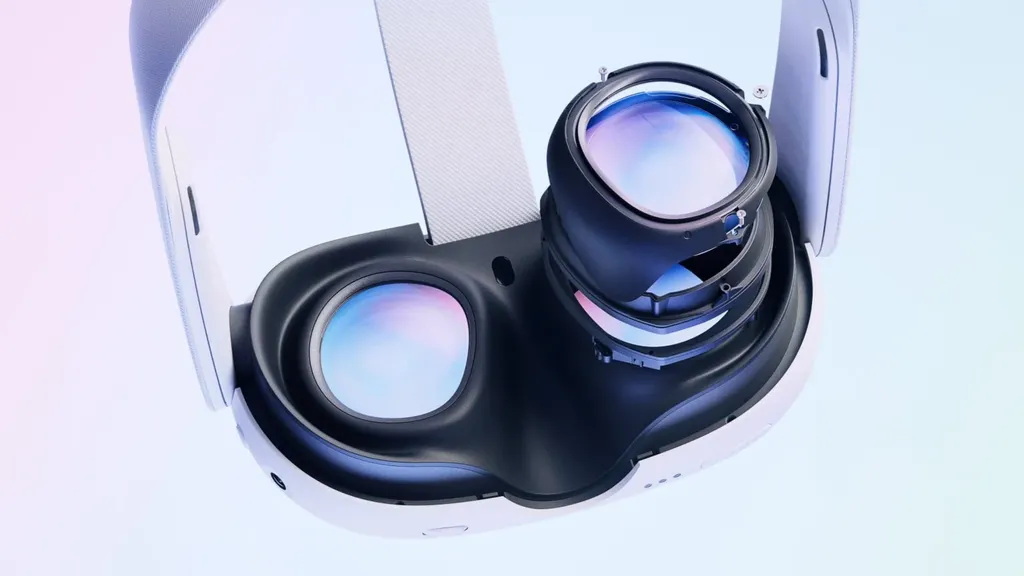
Meta's latest update for Quest headsets adds a Gamepad Emulation mode for Touch Plus controllers and a range of extended refresh rates on Quest 3, alongside other changes.
Gamepad Mode
Gamepad Mode being tested in Valve's Steam Link in 2D mode, with the game Zenless Zone Zero.
Gamepad Mode is a new feature rolling out in Horizon OS 2.7, allowing Quest 3 and 3S users to emulate Xbox gamepad inputs on their Touch Plus controllers after setting up the feature in Settings > Devices > Controllers.
This is similar to the controller-mapping features offered by apps such as Virtual Desktop and various emulators. The Grip button or Thumbrest can be used as an input modifier, like the Shift key on a keyboard, and holding it changes specific controls into buttons not physically present on the Touch Plus controllers.
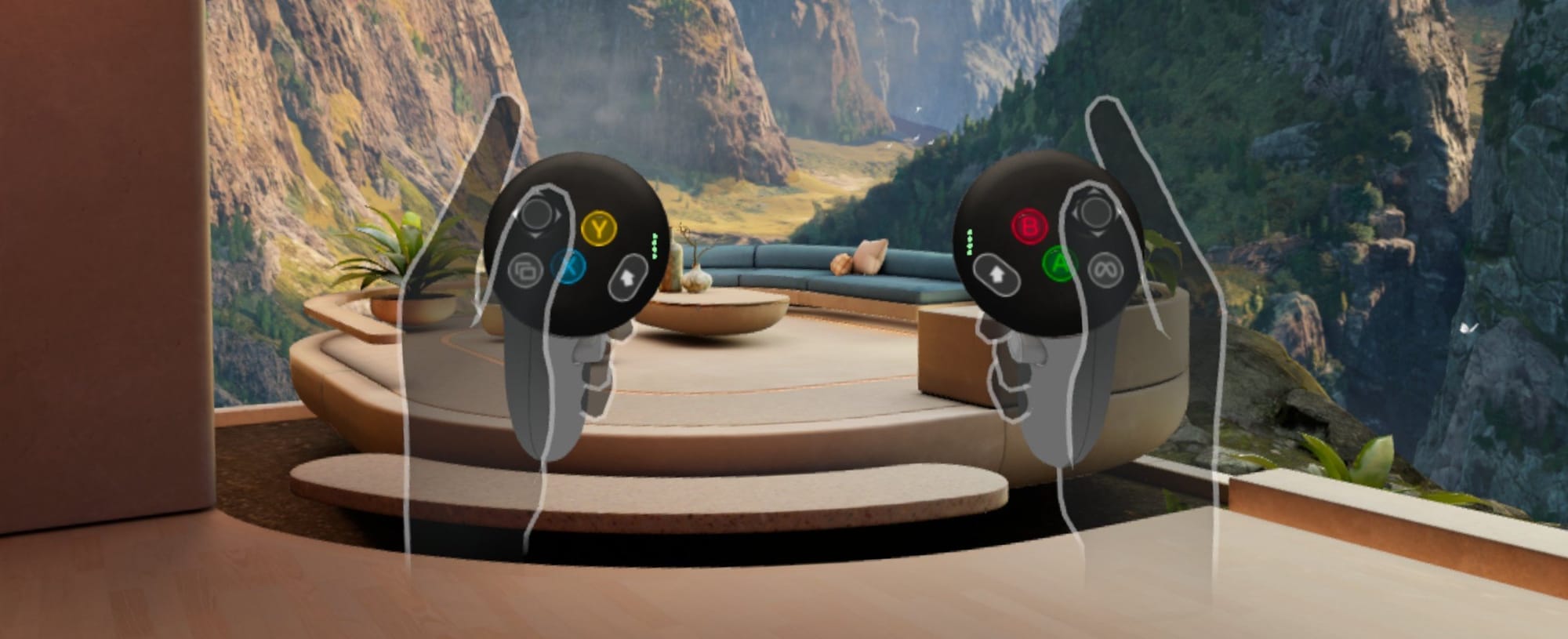
Meta describes this feature as being compatible with Xbox and Steam Link. In my testing, the feature seems to work best with games that rely on mostly unidirectional inputs, so casual and medium-paced action games will likely be the most suitable. In-headset documentation still recommends physical Xbox controllers for the "best" experience.
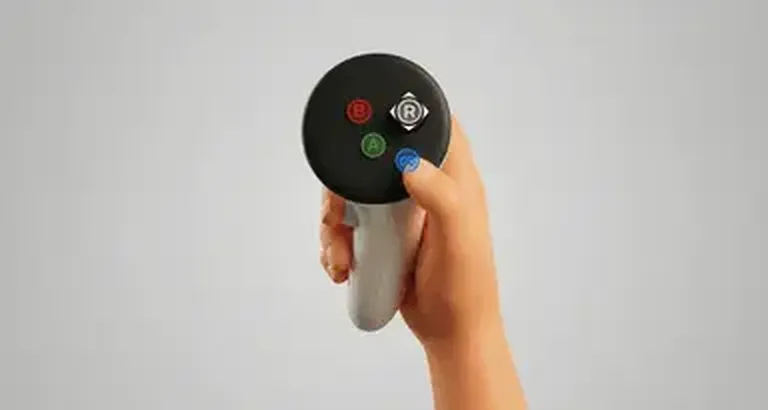
Meta has historically prioritized native VR/MR content over flat-screen gaming, and in April CTO Andrew Bosworth suggested that major controller hardware revisions are not currently planned.
While that makes split-gamepad designs like Valve's Steam Frame unlikely for Meta's future VR/MR hardware, this emulation feature gives users a functional software-based alternative when a physical gamepad is unavailable.
Up To 207 Hz Refresh Rate On Quest 3, And Up To 240 Hz With ADB Commands
Beat Saber running at 240 Hz refresh rate via ADB commands.
Since launch, Quest 3 has supported a range of display refresh rates up to 120 Hz, with the explicit options being 72 Hz, 80 Hz, 90 Hz, and 120 Hz. Earlier this year, 96 Hz and 100 Hz options were also added for developers.
Now, Meta has added support for significantly higher display refresh rates on Quest 3, with a feature the company calls extended refresh rates.
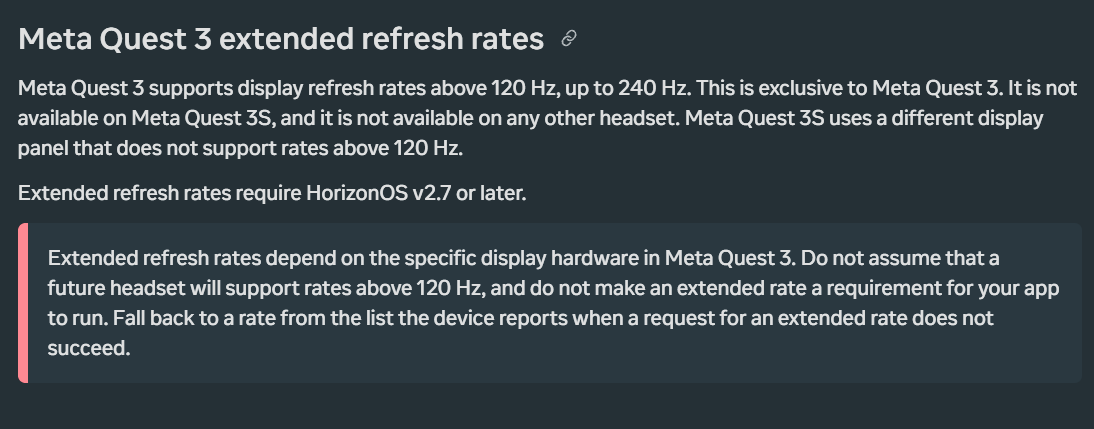
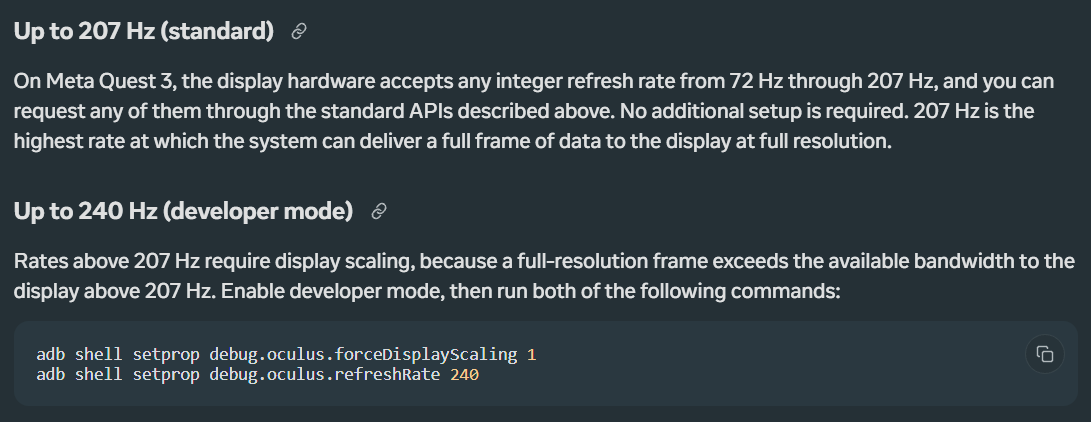
In Horizon OS 2.7, apps can now request refresh rates far above 120 Hz, reaching 207 Hz via the standard APIs.
Meta notes that this functionality is "exclusive to Meta Quest 3. It is not available on Meta Quest 3S, and it is not available on any other headset."
For devices in Developer Mode, the refresh rate can even be set above 207 Hz, reaching as high as 240 Hz. This is done with ADB commands and first requires display scaling to be enabled, which renders frames at a lower resolution and then they are upscaled to the panel's native resolution by the display hardware.
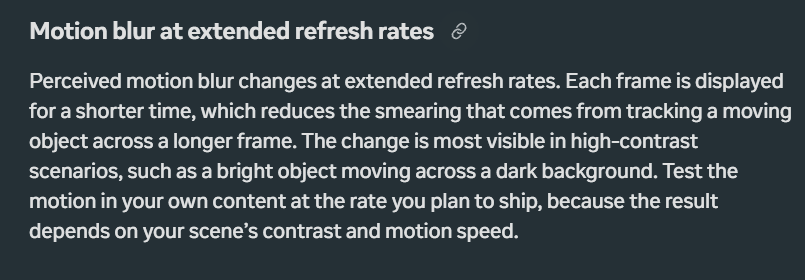
Meta says that display scaling trades image quality for bandwidth and that the upscaled image is not identical to a natively rendered full-resolution image, which is visible in details such as small text and thin geometry. The company also cautions that "Perceived motion blur changes at extended refresh rates" and in my testing, this is most noticeable at refresh rates above 144 Hz.
Multiple apps have already been updated to take advantage of extended refresh rates, including both the sideloadable Quest Games Optimizer and Virtual Desktop on the Meta Horizon Store now offering 144 Hz modes, with the latter being available in the app's beta channel.
Just added 144 fps support with Quest 3 in Virtual Desktop on our Beta channel. Go try it out and let us know what you think!
— Guy Godin (@VRDesktop) August 29, 2026
Display Size
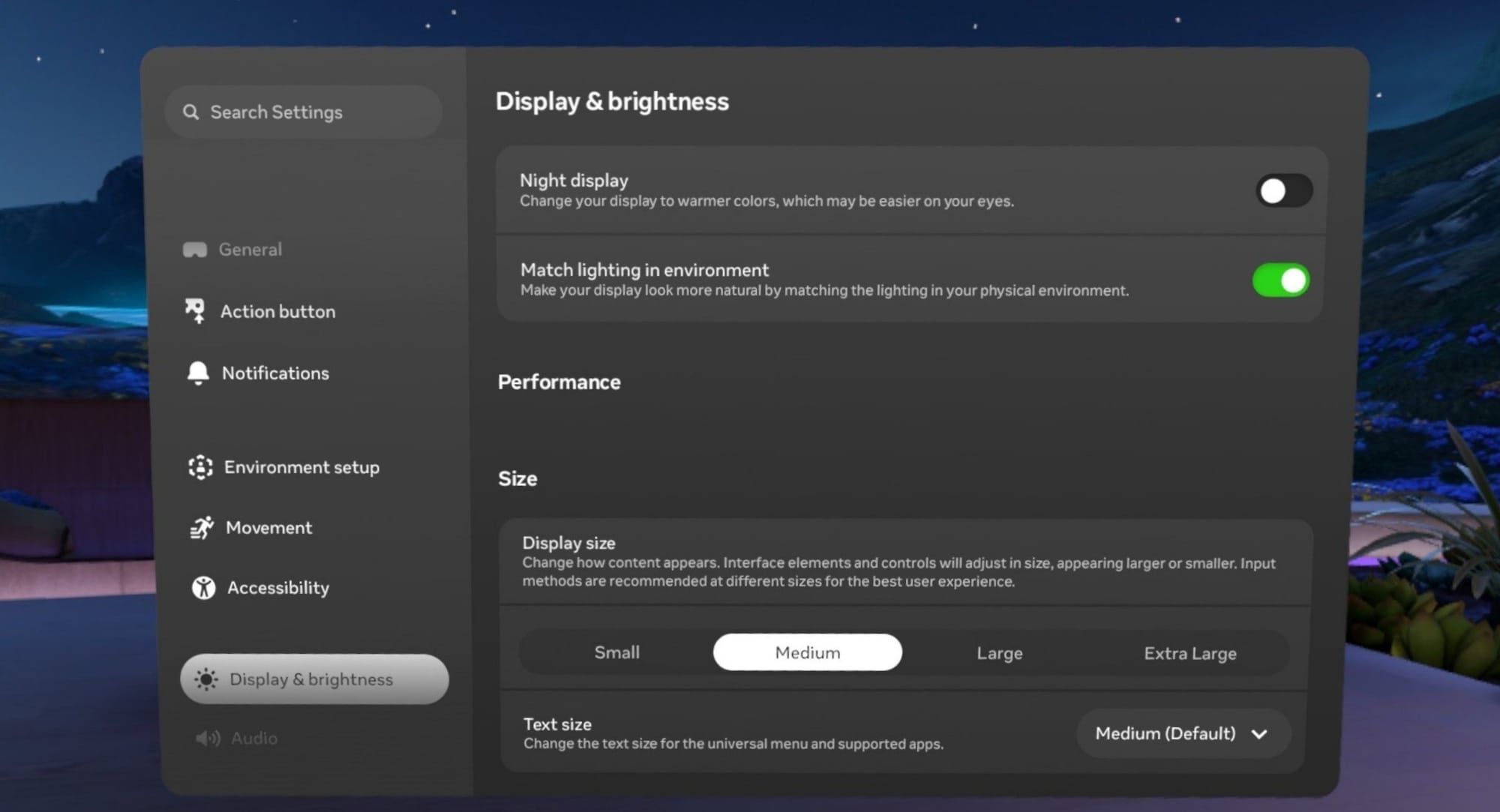
Horizon OS 2.7 adds a new Size section in Settings > Display & brightness. This builds on the existing text size adjustment settings by allowing users to adjust the relative size of all UI elements and windows.
In my testing, at Extra Large, a maximum-size standard window is about the same size as, if not larger than, a Medium (Default) Focus/Theater Window.
Remote Desktop Is Now Virtual Display & Adds HDMI Link Functionality
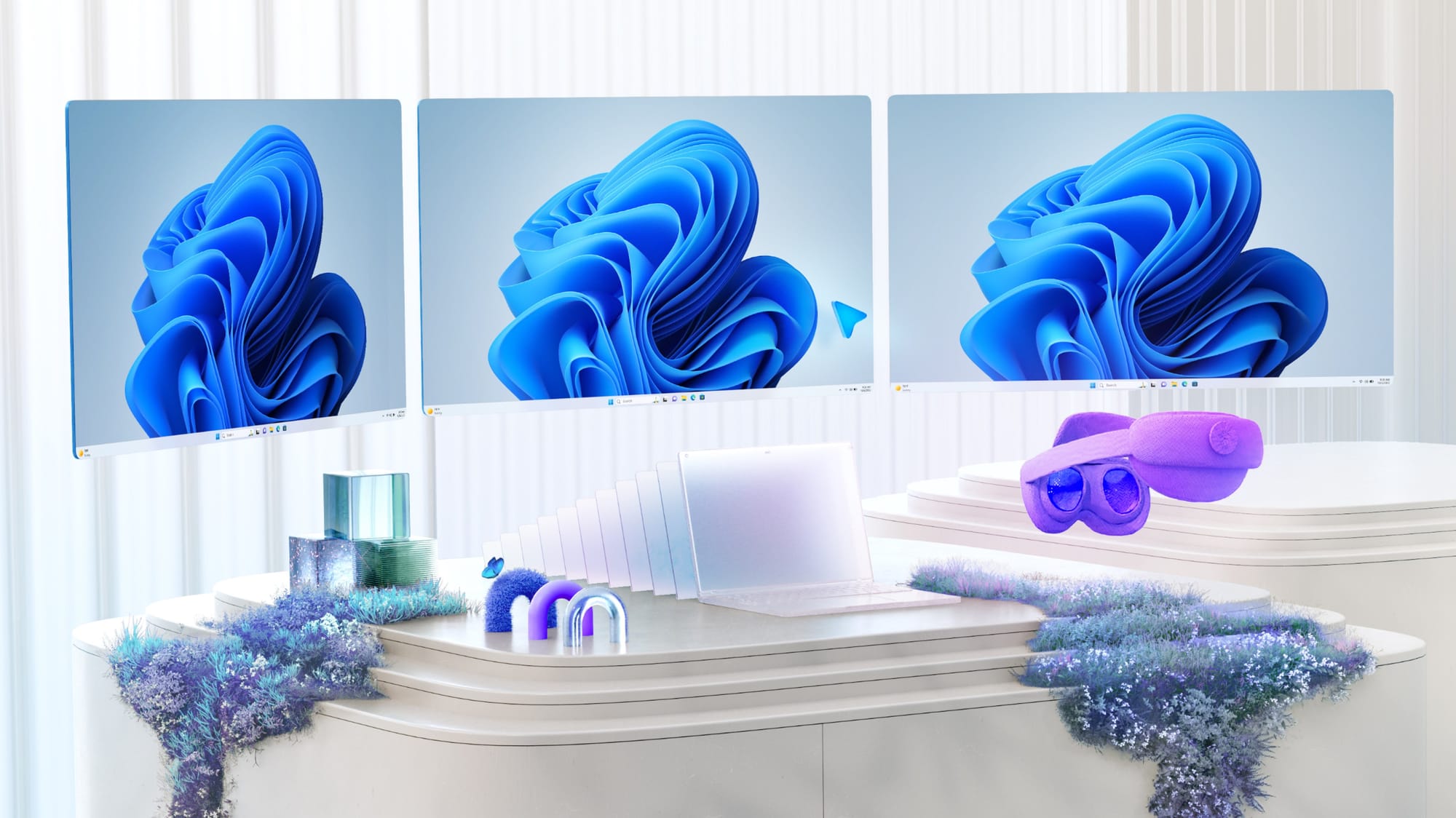
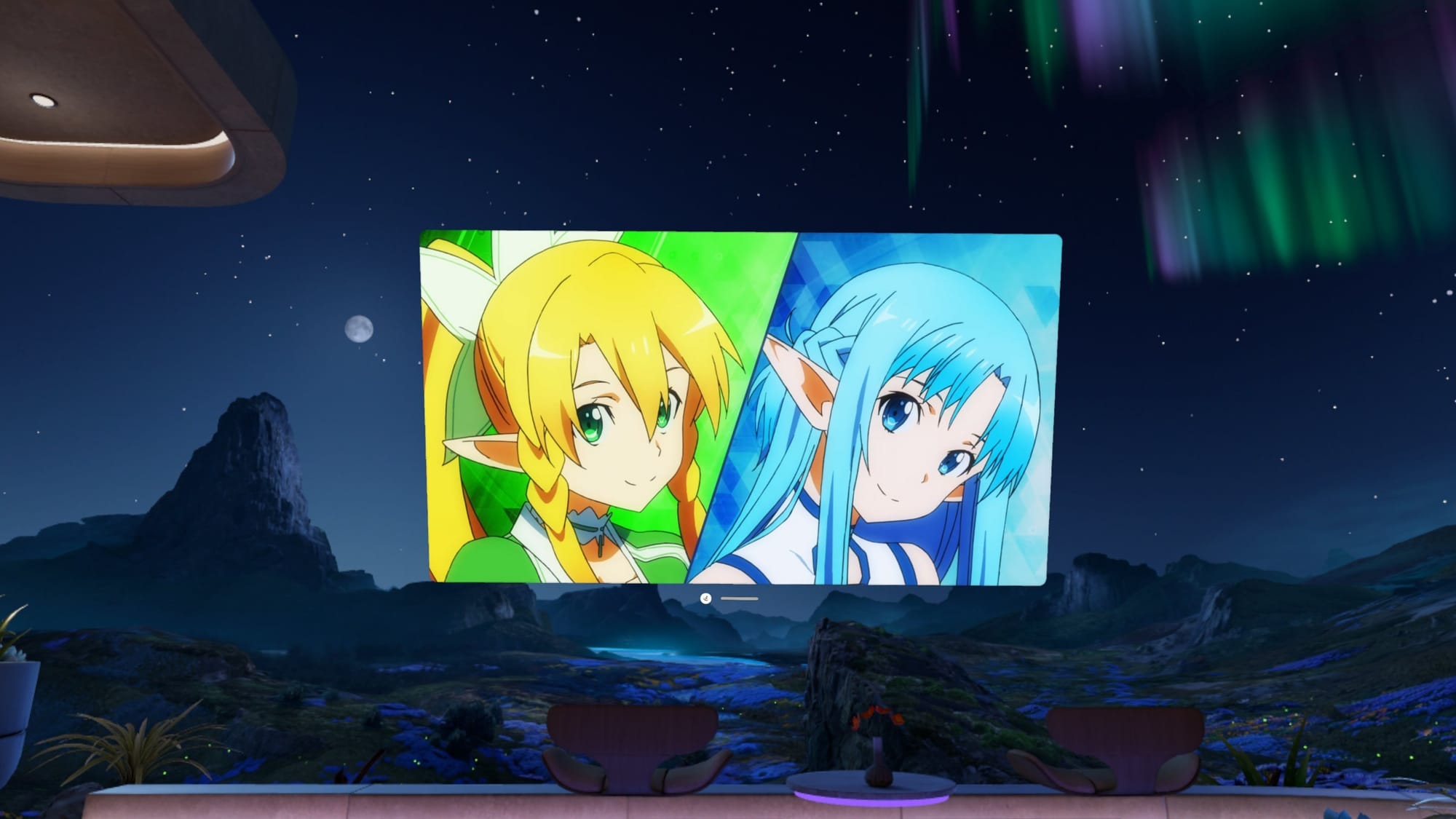
In July 2026, Meta rebranded the Remote Desktop app as Virtual Display, while Horizon OS 2.7 merged Meta Quest HDMI Link's functionality into it, creating a single app for multiple screen-mirroring use cases.

Meta notes that "Support for the HDMI Link app will be winding down soon, but support will continue in Virtual Display" and in my testing the functionality is identical, as connecting an HDMI-to-USB-C capture card will automatically open Virtual Display.




![Good Morning [Employee Name] VR Trailer Hints At An Unsettling Office Mystery](https://storage.ghost.io/c/2a/2f/2a2f38f0-4b71-407a-9c7e-18a9e2541980/content/images/size/w800/format/webp/2026/10/good-morning-employee-name-vr.jpg)





![Good Morning [Employee Name] VR Trailer Hints At An Unsettling Office Mystery](https://storage.ghost.io/c/2a/2f/2a2f38f0-4b71-407a-9c7e-18a9e2541980/content/images/size/w480/format/webp/2026/10/good-morning-employee-name-vr.jpg)